Back to Sidekick

Install the Sidekick

Get the Workshopr facilitation side panel running in Chrome in under 2 minutes.

Takes about 2 minutes

Before you start

1

Download the extension

Download the zip file and unzip it anywhere on your computer.

Download workshopr-sidekick.zip

86 KB — contains everything you need

After downloading, unzip the file. You'll get a folder called dist/ containing the extension files.
Extension files in the dist folder
The unzipped dist/ folder contains manifest.json, index.html, and assets
💡 Remember where you unzipped it — you'll point Chrome to this folder in step 4.
2

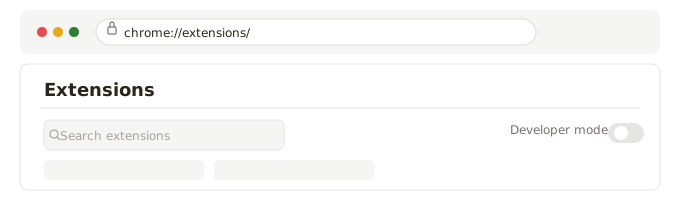
Open Chrome Extensions

Type this in your Chrome address bar and press Enter:

chrome://extensions/

Or go to: Chrome menu (⋮) → ExtensionsManage Extensions

Chrome Extensions page in the browser
The Chrome Extensions management page
3

Enable Developer Mode

In the top-right corner of the Extensions page, toggle Developer mode to ON.
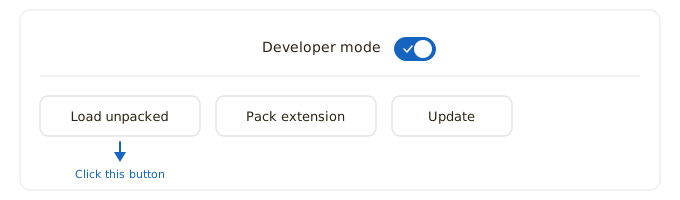
Developer mode toggle switched on in the top-right corner
Toggle Developer mode ON in the top-right corner

Three new buttons appear: Load unpacked, Pack extension, and Update.

4

Load the extension

Click Load unpacked and navigate to the dist/ folder you unzipped in step 1.

Select the dist folder and click Open (or Select Folder on Windows).

You should see Workshopr.io Sidekick appear in your extensions list with a green “Loaded” badge.
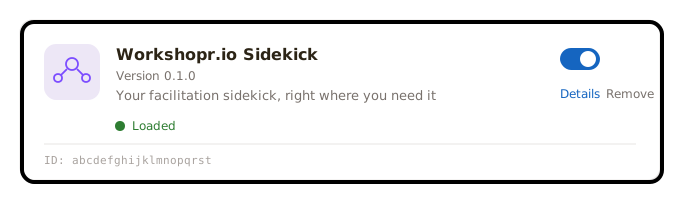
Workshopr.io Sidekick loaded in Chrome Extensions
The extension appears with its icon and description
⚠️ If you see errors, make sure you selected the dist/ folder (not sidekick/ or src/). The dist/ folder must contain manifest.json.
5

Pin the extension

Click the puzzle piece icon (🧩) in Chrome's toolbar to open the Extensions menu.

Find Workshopr.io Sidekick in the list and click the pin icon next to it. The Workshopr icon now appears permanently in your toolbar.
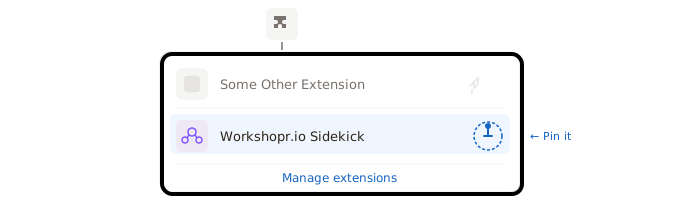
Extensions menu showing the pin icon next to Workshopr.io Sidekick
Click the pin icon to keep it visible in your toolbar
6

Open the side panel

Click the Workshopr icon in your toolbar. The Sidekick opens as a side panel docked to the right edge of your browser.
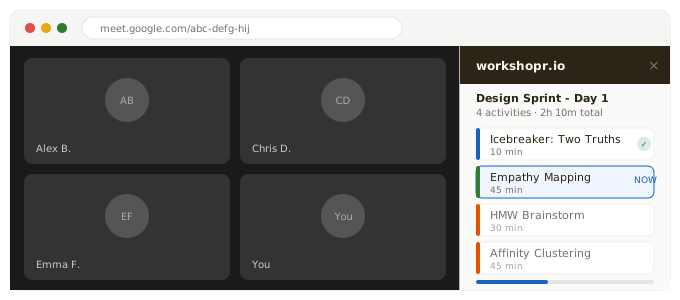
Workshopr.io Sidekick open as a side panel in Chrome
The Sidekick docked to the right side of your browser

From here:

  • 1. Sign in with your workshopr.io account
  • 2. Select a saved workshop from your list
  • 3. Press Start Session and begin facilitating
💡 No saved workshops? Open the Planner and build your first agenda — it takes about 5 minutes.
check_circle

You're all set

The Sidekick is ready. Open it alongside Google Meet, Zoom, or any browser tab to facilitate your next session.

For developers: build from source

If you want to modify the extension or build the latest version yourself.

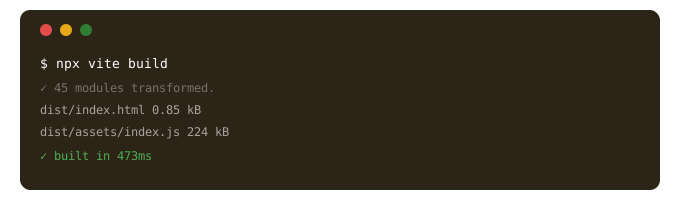
1. Install dependencies & build
cd planner/live/sidekick
npm install
npx vite build
2. Load the dist/ folder
Follow steps 2–6 above, pointing Chrome to the dist/ folder inside planner/live/sidekick/.
3. After making changes
Run npx vite build again, then click the refresh icon (↻) on the extension card at chrome://extensions/.

Troubleshooting

The extension doesn't appear after loading
Make sure you selected the dist/ folder, not the parent sidekick/ folder. The dist/ folder must contain manifest.json, index.html, and an assets/ folder.
I see “Errors” on the extension card
Click the Errors button to see details. Common fix: rebuild with npx vite build and reload the extension (click the refresh icon on the extension card).
The side panel doesn't open when I click the icon
Some Chromium browsers require enabling side panel support. Try: chrome://flags/#side-panel and set it to Enabled. Restart Chrome.
Google Sign-In doesn't work
Chrome Extension CSP blocks the Google Sign-In script. The Sidekick uses a popup-based OAuth flow instead. If the popup is blocked, allow popups for the extension in Chrome settings.
How do I update the extension after code changes?
Run npx vite build again, then go to chrome://extensions/ and click the refresh icon (↻) on the Workshopr.io Sidekick card.